Search This Blog

Showing posts with label Uri. Show all posts

Sunday, September 25, 2016

file:// scheme is now not allowed to be attached with Intent on targetSdkVersion 24 (Android Nougat). What todo?

https://inthecheesefactory.com/blog/how-to-share-access-to-file-with-fileprovider-on-android-nougat/en

Android Nougat is almost be publicly released. And as an Android developer, we need to prepare ourself to adjust targetSdkVersion to the latest one, 24, to let everything works perfectly on the newest release of Android.

And as always, everytime we adjust targetSdkVersion, we need to check and make sure that every single part of our code works perfectly fine. If you just simply change the number, I could say that your application is taking a high risk of crashing or malfunction. In this case, when you change your app's targetSdkVersion to 24, we need to check that every single function works flawlessly on Android Nougat (24).

And this is one of the checklist you need to mark done before releasing your new version. There is one big security change on Android N like quoted below:


Passing file:// URIs outside the package domain may leave the receiver with an unaccessible path. Therefore, attempts to pass a file:// URI trigger a FileUriExposedException. The recommended way to share the content of a private file is using the FileProvider


Summarily, file:// is not allowed to attach with Intent anymore or it will throw FileUriExposedException which may cause your app crash immediately called.

This blog will talk about this issue and also about the solution how to make it work on Android N.


Real example with a crashing problem

You may be curious which situation that can really cause the problem. So to make it be easy to you all, let me show you a real usage example that causes crashing. The easiest example is the way we take a photo through Intent with ACTION_IMAGE_CAPTURE type. Previously we just pass the target file path with file:// format as an Intent extra which works fine on Android Pre-N but will just simply crash on Android N and above.

If you are running the code with targetsdkversion set to 23. But this will give you an following exception when you set targetsdkversion to 24.

FATAL EXCEPTION: main Process: com.inthecheesefactory.lab.intent_fileprovider, PID: 28905 
android.os.FileUriExposedException: file:///storage/emulated/0/DCIM/Camera/IMG_25092016.jpg exposed beyond app through ClipData.Item.getUri() 
at android.os.StrictMode.onFileUriExposed(StrictMode.java:1799) 
at android.net.Uri.checkFileUriExposed(Uri.java:2346) 
at android.content.ClipData.prepareToLeaveProcess(ClipData.java:832) ...

The reason is quite obvious. file:// is not allowed as an attached URI in Intent or FileUriExposedException would be thrown.

And this is a big issue that you have to make sure that all code related to this case has already been fixed before releasing a new version with targetSdkVersion 24 or your app may crash on some of your user's device.


Why nougat does not allow passing file:// with intent any more?

You may be curious why Android team decide to change this behavior. Actually there is a good reason behind.

If file path is sent to the target application (Camera app in this case), file will be fully accessed through the Camera app's process not the sender one.
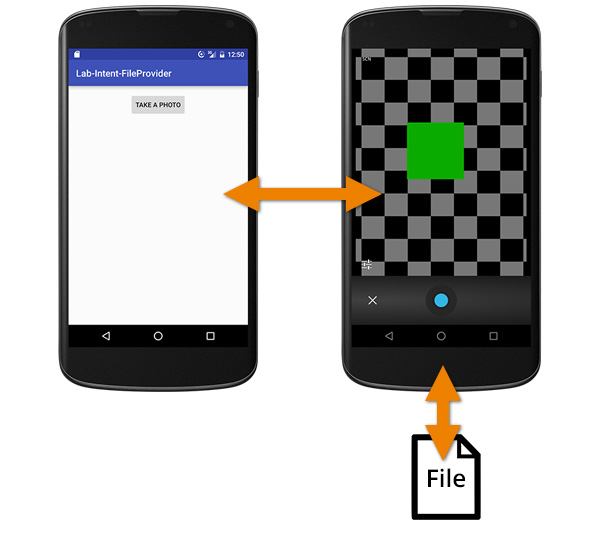


But let's consider thoroughly, actually Camera is launched by our application to take a photo and save as a file on our app's behalf. So the access right to that file should be our app's not Camera's. Every operation did with the file should be done through our application not by Camera app itself.

And that's why file:// is now prohibited on targetSdkVersion 24 to force every developer to do this task in the proper way.


Solution is as below :
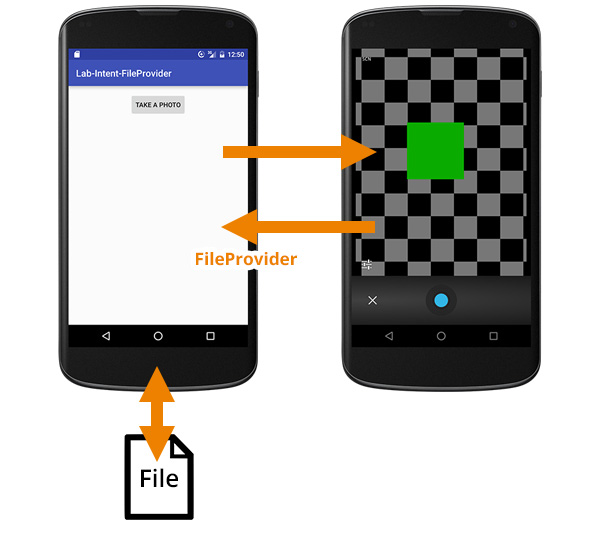
So if file:// is not allowed anymore, which approach should we go for? The answer is we should send the URI through content:// scheme instead which is the URI scheme for Content Provider. In this case, we would like to share an access to a file through our app so FileProvider is needed to be implemented. Flow is now changed like below:


And now, with FileProvider, file operation would be done through our app process like it supposes to be !

It is quite easy to implement FileProvider on your application. First you need to add a FileProvider<provider> tag in AndroidManifest.xml under <application> tag like below:


AndroidMenifest.xml

<?xml version="1.0" encoding="utf-8"?> 
<manifest xmlns:android="http://schemas.android.com/apk/res/android"
          ........
          <application 

                      ...
                     <provider
                               android:name="android.support.v4.content.FileProvider"

                               android:authorities="${applicationId}.provider"
                               android:exported="false"
                               android:grantUriPermissions="true">
                               <meta-data android:name="android.support.FILE_PROVIDER_PATHS"                                                                 android:resource="@xml/provider_paths"/>
                      </provider>
            </application>
</manifest>


And then create a provider_paths.xml file in xml folder under res folder. Folder may be needed to create if it doesn't exist.

The content of the file is shown below. It describes that we would like to share access to the External Storage at root folder (path=".") with the name external_files.


res/xml/provider_paths.xml

<?xml version="1.0" encoding="utf-8"?> 
           <paths xmlns:android="http://schemas.android.com/apk/res/android">
           <external-path name="external_files" path="."/> 
</paths>

FileProvider is now declared and be ready to use.

The last step is to change the line of code below in Activity


Uri photoURI = Uri.fromFile(createImageFile());

to

Uri photoURI = FileProvider.getUriForFile(MainActivity.this,
               BuildConfig.APPLICATION_ID +
               ".provider", createImageFile());


You are done, Your code should run in all the previous version with nougat.

Saturday, November 23, 2013

Get the Original file path From the Uri in the OnActivity Result

First of all pass the Intent to pick the image from the external storage.. or gelllary

Intent intent = new Intent(Intent.ACTION_PICK, 
      Images.Media.EXTERNAL_CONTENT_URI);
    startActivityForResult(intent, 0);


OnActivityResult write the following code snippet

@Override
 protected void onActivityResult(int requestCode, int resultCode, Intent data) {
  super.onActivityResult(requestCode, resultCode, data);
  
  if(resultCode == RESULT_OK){
   
   image.setImageBitmap(null);
   
   //Uri return from external activity
   orgUri = data.getData();
   text1.setText("Returned Uri: " + orgUri.toString() + "\n");
   
   //path converted from Uri
   convertedPath = getRealPathFromURI(orgUri);
   text2.setText("Real Path: " + convertedPath + "\n");
   
   //Uri convert back again from path
   uriFromPath = Uri.fromFile(new File(convertedPath));
   text3.setText("Back Uri: " + uriFromPath.toString() + "\n");
  }
  
 }

Getting the real path of the Image using the Uri returned in OnActivityResult...

public String getRealPathFromURI(Uri contentUri) {
  String[] proj = { MediaStore.Images.Media.DATA };
  
  //This method was deprecated in API level 11
  //Cursor cursor = managedQuery(contentUri, proj, null, null, null);
  
  CursorLoader cursorLoader = new CursorLoader(
            this, 
            contentUri, proj, null, null, null);        
  Cursor cursor = cursorLoader.loadInBackground();
  
  int column_index = 
    cursor.getColumnIndexOrThrow(MediaStore.Images.Media.DATA);
  cursor.moveToFirst();
  return cursor.getString(column_index); 
 }

Tuesday, February 28, 2012

Uploading Image to the server using webservice

first of all reach to the gallery of the phone using the intent.


Button btnBrowse = (Button)findViewById(R.id.btn_browse);
        btnBrowse.setOnClickListener(new View.OnClickListener() {

@Override
public void onClick(View v) {
Intent intent = new Intent();
                intent.setType("image/*");
                intent.setAction(Intent.ACTION_GET_CONTENT);
                startActivityForResult(Intent.createChooser(intent,
                "Select Picture"), SELECT_PICTURE);

}
});


Now onActivityResult should be like this.


public void onActivityResult(int requestCode, int resultCode, Intent data) {
   if (resultCode == RESULT_OK) {
       if (requestCode == SELECT_PICTURE) {
           Uri selectedImageUri = data.getData();
           selectedImagePath = getPath(selectedImageUri);
           EditText imageBrowse = (EditText)findViewById(R.id.thumb_url);
           imageBrowse.setText(selectedImagePath);
           byte[] strBytes = convertToBytes(selectedImagePath);
           
           imageBytes = strBytes;
       }
   }
}


    public byte[] convertToBytes(String selectedImagePath)
    {
    try
    {
    FileInputStream fs = new FileInputStream(selectedImagePath);

    Bitmap bitmap = BitmapFactory.decodeStream(fs);
   
    ByteArrayOutputStream bOutput = new ByteArrayOutputStream();
   
    bitmap.compress(CompressFormat.JPEG,1, bOutput);
   
    byte[] dataImage = bOutput.toByteArray();
   
    return dataImage;
    }
    catch(NullPointerException ex)
    {
    ex.printStackTrace();
    return null;
    } 
    catch (FileNotFoundException e)
    {  
e.printStackTrace();
return null;
}
   
    }


public String getPath(Uri uri) {
   String[] projection = { MediaStore.Images.Media.DATA };
   Cursor cursor = managedQuery(uri, projection, null, null, null);
   int column_index = cursor
           .getColumnIndexOrThrow(MediaStore.Images.Media.DATA);
   cursor.moveToFirst();
   return cursor.getString(column_index);
}


Using this bytes you'll get the image uploaded to the web service and store the image on to the server.

Friday, February 10, 2012

Selecting The Image From The Gallery And Set The Path Into The EditText

First of all we have to reach to the android default gallery and select the file from that and set that path to the edit text.


Make an .xml file named main.xml file and copy this into it.


<?xml version="1.0" encoding="utf-8" ?>
<LinearLayout xmlns:android="http://schemas.android.com/apk/res/android" android:layout_width="fill_parent" 
        android:layout_height="fill_parent" 
        android:orientation="vertical">
   <EditText android:id="@+id/absolutepathofimage" 
        android:layout_width="fill_parent" 
        android:layout_height="wrap_content" />
  <Button android:text="Browse" 
        android:layout_width="wrap_content" 
        android:layout_height="wrap_content" 
        android:id="@+id/btnBrowse" />
  </LinearLayout>


Now make the java file named BrowseImagefromGallery and copy this code into it


import android.app.Activity;
import android.content.Intent;
import android.database.Cursor;
import android.net.Uri;
import android.os.Bundle;
import android.provider.MediaStore;
import android.view.View;
import android.widget.Button;
import android.widget.EditText;


public class BrowseImagefromGallery extends Activity {
private static final int GET_PICTURE = 1;


private String selectedImagePath;

    /** Called when the activity is first created. */
    @Override
    public void onCreate(Bundle savedInstanceState) {
        super.onCreate(savedInstanceState);
        setContentView(R.layout.main);
        
        Button btnBrowse = (Button)findViewById(R.id.btnBrowse);
        btnBrowse.setOnClickListener(new View.OnClickListener() {

@Override
public void onClick(View v) {
Intent intent = new Intent();
                intent.setType("image/*");
                intent.setAction(Intent.ACTION_GET_CONTENT);
                startActivityForResult(Intent.createChooser(intent,
                        "Select Picture"), GET_PICTURE);

}
});
        
        
    }
    
    public void onActivityResult(int requestCode, int resultCode, Intent data) {
   if (resultCode == RESULT_OK) {
       if (requestCode == GET_PICTURE) {
           Uri selectedImageUri = data.getData();
           selectedImagePath = getPath(selectedImageUri);
           EditText imageBrowse = (EditText)findViewById(R.id.absolutepathofimage);
           imageBrowse.setText(selectedImagePath);
       }
   }
}


public String getPath(Uri uri) {
   String[] projection = { MediaStore.Images.Media.DATA };
   Cursor cursor = managedQuery(uri, projection, null, null, null);
   int column_index = cursor
           .getColumnIndexOrThrow(MediaStore.Images.Media.DATA);
   cursor.moveToFirst();
   return cursor.getString(column_index);
}
}